


Complete reference for all MouseCross settings and their default values.
Accessing Settings
Windows
- Right-click the MouseCross icon in the system tray
- Select "Settings..." (or press Alt+S)
- The Settings dialog will appear
macOS
- Click the MouseCross icon in the menu bar
- Select "Settings..." (or press Cmd+,)
- The Settings window will appear
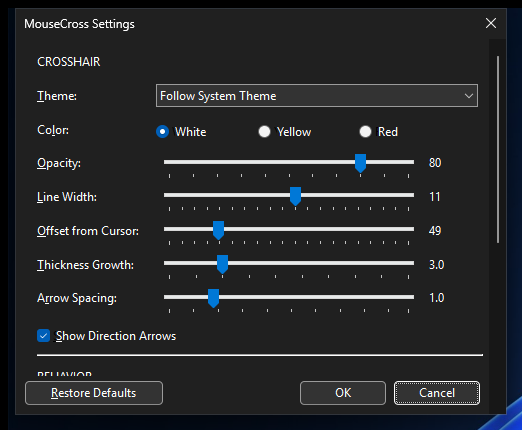
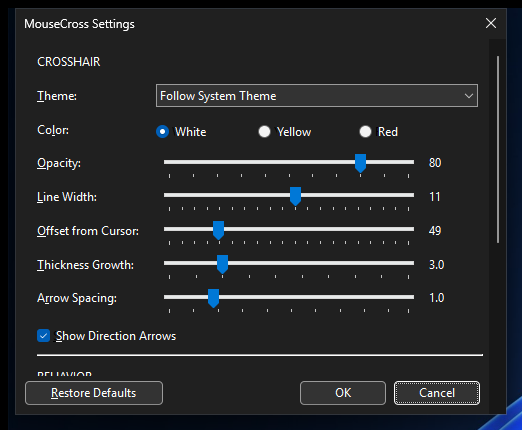
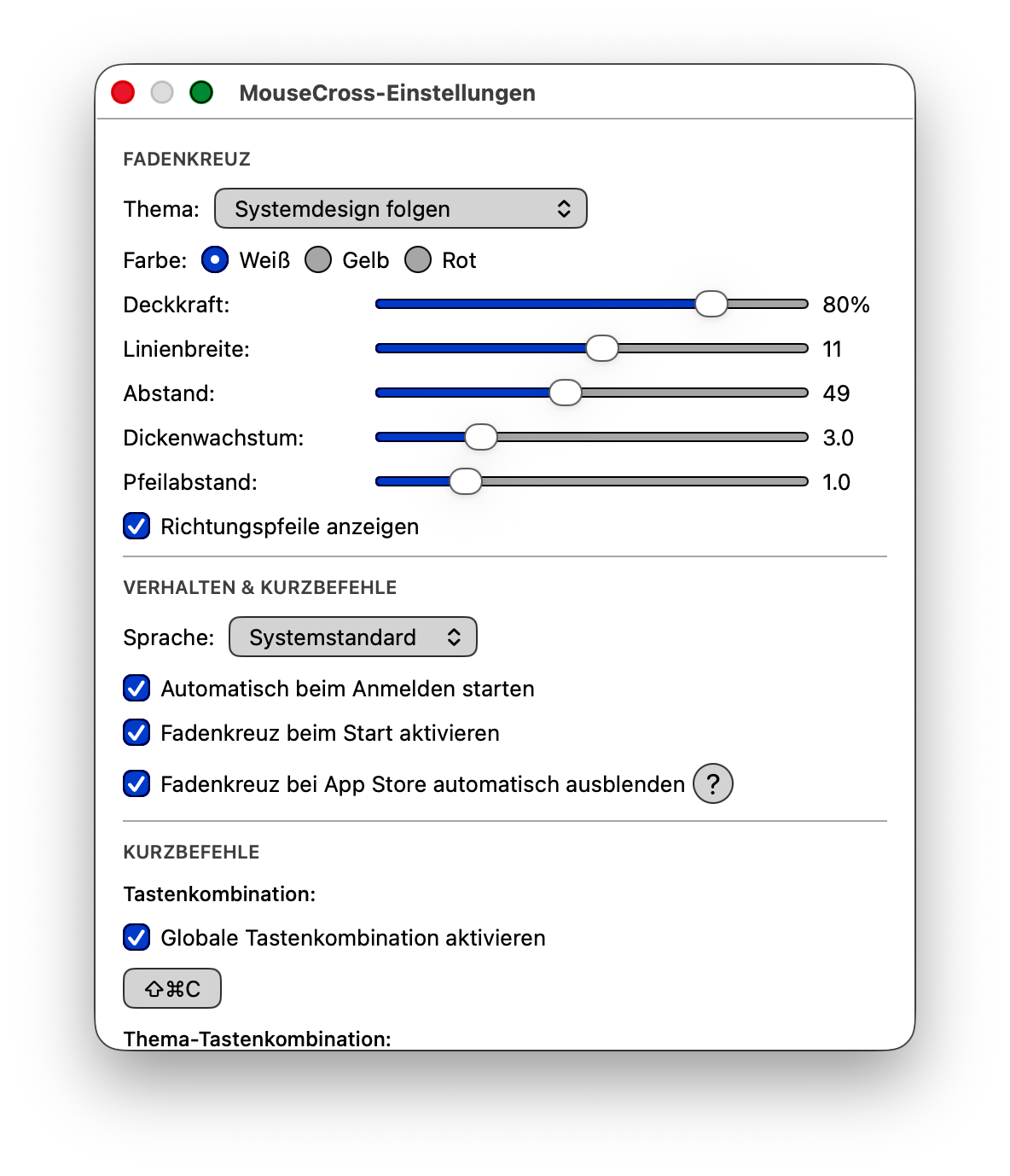
Dialog Layout
Both platforms use a single-column scrollable layout with three sections:
- CROSSHAIR — appearance (theme, color, opacity, line width, cursor offset, thickness growth, arrow spacing, show direction arrows)
- BEHAVIOR — language, auto-start, activate on startup
- HOTKEYS — toggle-crosshair hotkey and toggle-theme hotkey, each with its own enable checkbox
A bottom button bar (Restore Defaults / OK / Cancel) stays anchored while content scrolls past it. Tab navigation auto-scrolls to the focused control, so blind / low-vision users can reach every section with the keyboard alone — no need to know where the scrollbar is.
The Windows dialog is resizable; on small / high-DPI displays it caps itself to the screen work area so the bottom buttons are always reachable.
Appearance Settings
These settings control how the crosshair looks.
Line Width
Controls the thickness of the crosshair lines.
- Setting: Line Width slider
- Default: 11
- Range: 1-20 pixels
- Keyboard shortcut: Alt+L (Windows)
- Description: Thicker lines are more visible but may obstruct content. Start with the default and adjust based on your needs.
Opacity
Controls the transparency of the crosshair.
- Setting: Opacity slider
- Default: 80%
- Range: 0-100%
- Keyboard shortcut: Alt+O (Windows)
- Description: 100% is fully opaque, 0% is invisible. Lower values allow you to see through the crosshair more easily.
Cursor Offset
Controls the distance between the mouse cursor and the direction arrows.
- Setting: Cursor Offset slider
- Default: 49 pixels
- Range: 10-200 pixels
- Keyboard shortcut: Alt+C (Windows)
- Description: Smaller values keep indicators close to the cursor. Larger values reduce obstruction but require more eye movement.
Thickness Growth
Controls how much the line thickness increases toward the center.
- Setting: Thickness Growth slider
- Default: 3.0
- Range: 1.0-10.0
- Keyboard shortcut: Alt+T (Windows)
- Description: Higher values create more pronounced tapering toward the cursor. Currently affects rendering logic.
Arrow Spacing
Controls the spacing between direction arrows.
- Setting: Arrow Spacing slider
- Default: 5.0
- Range: 0-20.0
- Keyboard shortcut: Alt+I (Windows)
- Description: Affects the visual separation between arrow indicators.
Color Preset
Choose one of three color presets for the crosshair.
- Setting: Color Preset (radio buttons)
- Options: White / Yellow / Red
- Default: White
Show Direction Arrows
Toggle the visibility of direction arrows.
- Setting: "Show Direction Arrows" checkbox
- Default: Enabled (checked)
- Keyboard shortcut: Alt+S (Windows)
- Description: When unchecked, hides the direction arrows but keeps the crosshair tracking active.
Theme
Controls the crosshair color theme.
- Setting: Theme (combobox)
- Options: Light / Dark / Follow System
- Default: Follow System
- Keyboard shortcut (Windows): Ctrl+Alt+X
- Description: Light = white crosshair, Dark = black crosshair, Follow System = adapts automatically.
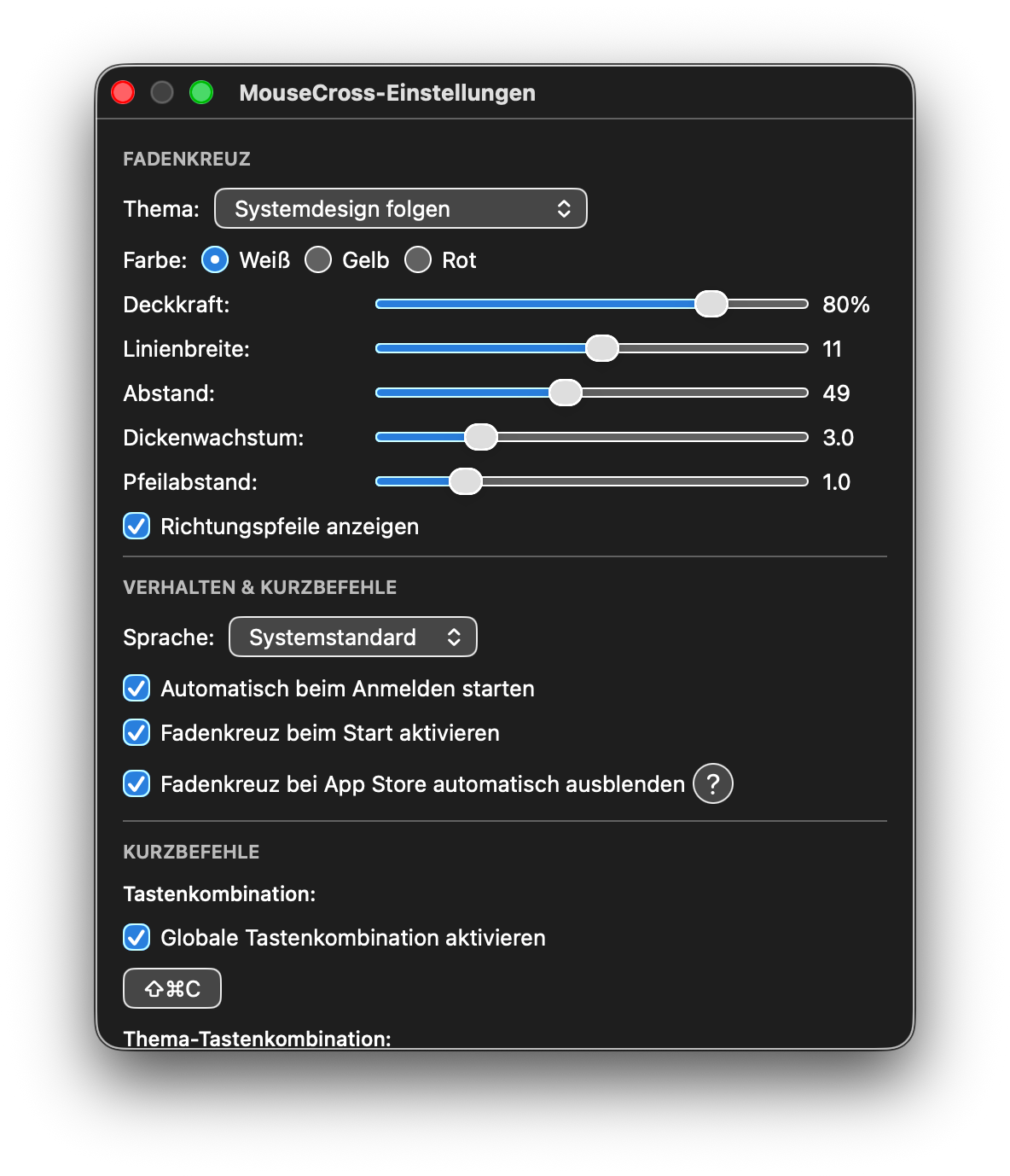
The Settings dialog in dark mode is the second tab of the screenshot block at the top of this page; the auto-tab JS already picks it for readers whose OS is in dark mode.
Behavior Settings
These settings control how MouseCross behaves.
Auto-Start
Launch MouseCross automatically when your computer starts.
- Setting: "Start automatically with Windows/macOS" checkbox
- Default: Enabled (checked)
- Keyboard shortcut: Alt+A (Windows)
- Description:
- Windows: Adds entry to Registry Run key
- macOS: Adds to Login Items
Activate on Startup
Show the crosshair immediately when MouseCross launches.
- Setting: "Activate crosshair on startup" checkbox
- Default: Enabled (checked)
- Keyboard shortcut: Alt+V (Windows)
- Description: When disabled, MouseCross runs in the background. Use the hotkey to show the crosshair when needed.
Language
Choose the UI language for the Settings dialog, tray menu, and all on-screen text.
- Setting: Language dropdown
- Options: System Language / English / German / Spanish / French / Portuguese / Italian / Dutch / Japanese
- Default: System Language (matches the OS UI language when supported, falls back to English)
- Keyboard shortcut: Alt+L (Windows) to focus the dropdown
Confirmation dialog: Every language change opens a confirmation prompt rendered in the newly-selected language so a screen reader can speak it. Default focus is on No, so a Tab+arrow accident in the dropdown can't lock you out of a language you read. Click Yes to apply, No to revert to the previous language.
Show Welcome Dialog
Display the welcome message on first launch.
- Setting: Internal setting
- Default: Enabled
- Description: After the first launch, this is automatically disabled. You can view the welcome dialog again from the About dialog.
Hotkey Settings
Configure global keyboard shortcuts. Each hotkey has its own Enabled checkbox so you can turn an individual shortcut off without losing your key combination.
Toggle Crosshair Hotkey
The keyboard combination to show/hide the crosshair.
- Setting: Hotkey control + "Enabled" checkbox
- Default: Ctrl+Alt+Shift+C
- Keyboard shortcut: Alt+C (Windows) to focus the hotkey field, Alt+N for the Enabled checkbox
- Description:
- Click the hotkey field and press your desired key combination
- Must include at least one modifier (Ctrl, Alt, Shift)
- Works globally - no need to focus MouseCross window
- Uncheck Enabled to disable the shortcut entirely
Recommended hotkeys:
- Ctrl+Alt+Shift+C (default)
- Ctrl+Alt+C
- Ctrl+Shift+M
- F12
Toggle Theme Hotkey
The keyboard combination to switch between Dark and Light crosshair themes.
- Setting: Hotkey control + "Enabled" checkbox
- Default: Ctrl+Alt+Shift+X (Windows) / Cmd+Option+X (macOS)
- Description:
- Cycles Dark ↔ Light only — "Follow System" is set via the Theme dropdown, not via this hotkey
- Uncheck Enabled to disable
Dialog Buttons
OK
Apply changes and close the Settings dialog.
- Keyboard shortcut: Enter (Windows)
- Description: Saves settings and closes the dialog.
Cancel
Discard changes and close the Settings dialog.
- Keyboard shortcut: Esc (Windows)
- Description: Reverts to previous settings without saving changes.
Restore Defaults
Reset all settings to their default values.
- Keyboard shortcut: Alt+R (Windows)
- Description: Immediately resets all settings to factory defaults. Changes are applied when you click OK.
Settings Storage
Windows
Settings are stored in the Windows Registry:
Location: HKEY_CURRENT_USER\Software\MouseCross
Keys:
crosshairTheme(DWORD) - Theme (0=Light, 1=Dark, 2=Follow System)crosshairColorPreset(DWORD) - Color preset (0=White, 1=Yellow, 2=Red)CrosshairThickness(DWORD) - Line widthCrosshairOpacity(DWORD) - Opacity (0-255)CrosshairSize(DWORD) - Cursor offsetCrosshairShape(DWORD) - Shape enum valueAutoStart(DWORD) - Auto-start booleanActivateOnStart(DWORD) - Activate on startup booleanShowWelcome(DWORD) - Show welcome booleanToggleHotkey(DWORD) - Virtual key codeToggleModifiers(DWORD) - Modifier flags
macOS
Settings are stored in UserDefaults:
Domain: com.mousecross.MouseCross
Keys:
crosshair.theme(Integer) - Theme (0=Light, 1=Dark, 2=Follow System)crosshair.colorPreset(Integer) - Color preset (0=White, 1=Yellow, 2=Red)crosshair.thickness(Double) - Line widthcrosshair.opacity(Double) - Opacity (0.0-1.0)crosshair.size(Double) - Cursor offsetcrosshair.shape(Integer) - Shape enum valuebehavior.autoStart(Bool) - Auto-startbehavior.activateOnStart(Bool) - Activate on startupbehavior.showWelcome(Bool) - Show welcome
Resetting Settings
Windows
Method 1: Use Restore Defaults button
- Open Settings
- Click "Restore Defaults"
- Click "OK"
Method 2: Delete registry key
- Run the included
kill_and_reset.batscript - Or manually delete
HKEY_CURRENT_USER\Software\MouseCrossin Registry Editor
macOS
Method 1: Use Restore Defaults button
- Open Settings
- Click "Restore Defaults"
- Click "OK"
Method 2: Delete UserDefaults
defaults delete com.mousecross.MouseCross
Next Steps
- Keyboard Shortcuts - All keyboard commands
- Accessibility Features - Screen reader and keyboard support
- Troubleshooting - Common issues and solutions