


Welcome to the ControlNav user manual. This guide will help you install, configure, and use ControlNav to navigate UI controls in any Windows application efficiently.
What is ControlNav?
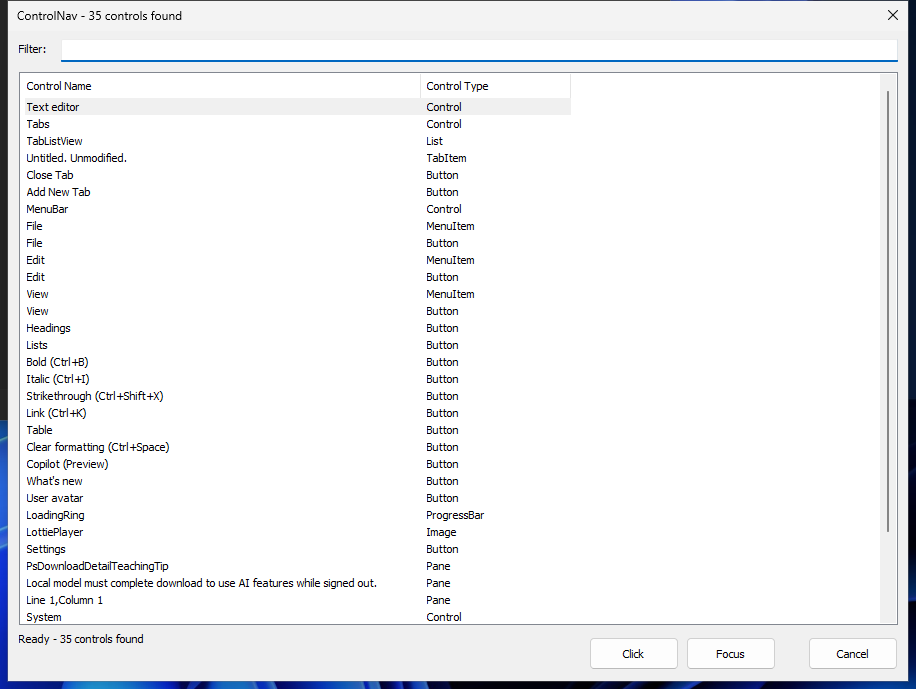
ControlNav is a Windows accessibility tool designed specifically for blind and visually impaired screen reader users (JAWS, NVDA, Windows Narrator). It lists all UI controls in the foreground application with instant search and keyboard navigation, eliminating the need for sequential tabbing through controls.
Before: Tab → Tab → Tab → Tab → ... → (find control) → Enter
After: Ctrl+Alt+L → Type search → Enter
Key Features
- Control Listing - Instantly view all controls in any Windows application
- Real-Time Search - Filter controls as you type
- Arrow Key Navigation - Navigate the list while typing in the search box
- Three Interaction Modes - Click, Double Click, or Focus any control
- Global Shortcut - Quickly access control list (Ctrl+Alt+L) from any application
- Screen Reader Support - Fully accessible with JAWS, NVDA, and Narrator
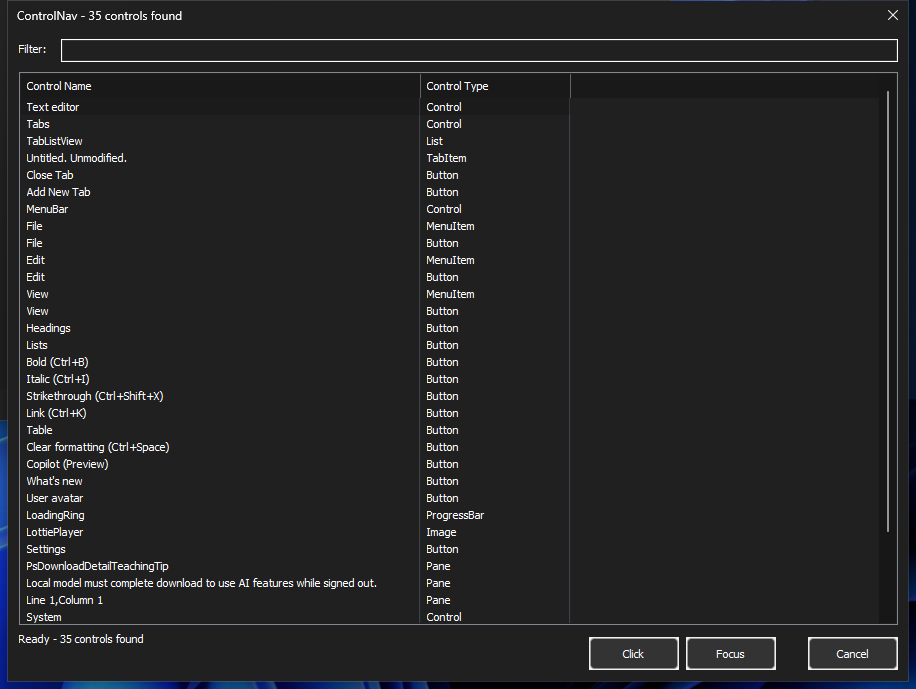
- Dark Mode - Automatically follows your Windows dark/light theme
- 8 Languages - English, German, Spanish, French, Japanese, Portuguese, Italian, Dutch
- Lazy Loading - Controls load progressively for responsive UI with large applications
- Auto-start - Optionally launch automatically with Windows
- Persistent Settings - Your preferences are saved automatically
- Zero Dependencies - Pure Win32 application with no runtime requirements
- Privacy Focused - No data collection or telemetry
Who Should Use ControlNav?
ControlNav is designed for:
- Blind and visually impaired screen reader users
- Users who find tabbing through long lists of controls tedious
- Users who need to quickly locate specific buttons, checkboxes, or input fields
- Anyone who wants faster navigation in complex Windows applications
- Developers testing application accessibility
Application Compatibility
ControlNav works with any Windows application that supports Microsoft UI Automation. It has been tested with 10 different UI frameworks:
| Framework | Support Level |
|---|---|
| WPF, WinForms, Win32, WinUI 3, .NET MAUI, Electron, Qt, wxPython | Full |
| Java Swing (with JAB), GTK (with ATK bridge) | Partial |
| Tkinter | Limited |
See Features Overview for the complete compatibility table.
Accessibility Features
ControlNav has been designed with accessibility as the top priority:
- Full Screen Reader Support - Native Windows UIA support for JAWS, NVDA, and Narrator
- Complete Keyboard Navigation - All features accessible via keyboard
- Arrow Key Navigation - Up/Down arrows work while typing in search box
- Dark Mode - Follows your Windows theme automatically
- Intuitive Interface - Simple, focused design with minimal controls
- Instant Feedback - Real-time filtering and control information
- 8 Languages - English, German, Spanish, French, Japanese, Portuguese, Italian, Dutch
Getting Started
:maxdepth: 2
:caption: Contents:

installation
features
settings
keyboard-shortcuts
accessibility
troubleshooting
Quick Navigation
- Installation Guide - Download and install ControlNav
- Features Overview - Learn about ControlNav capabilities
- Settings Reference - Configure ControlNav to your needs
- Keyboard Shortcuts - All keyboard commands
- Accessibility Features - Screen reader and keyboard access
- Troubleshooting - Common issues and solutions
System Requirements
Windows
- Windows 10 or Windows 11 (x64)
- < 1 MB free disk space
- No additional software required (pure Win32 application)
- Screen reader (JAWS, NVDA, or Windows Narrator) recommended
Minimum Hardware
- Any 64-bit Windows PC
- No special hardware requirements
Privacy & Security
ControlNav respects your privacy:
- No data collection - We don't collect any user data
- No internet access - Works completely offline
- No telemetry - Your usage stays private
- Local settings - All preferences stored in Windows Registry locally
License & Support
ControlNav is proprietary software.
Copyright © 2025-2026 Stefan Lohmaier. All Rights Reserved.
For support, please visit our GitHub repository.
Ready to get started? Begin with the Installation Guide.